Getting started
Your first hour in Rosterly
You have a week to plan and a business to run. This is the whole sequence in the order you will actually do it: create the company, answer six questions, add your people, plan one week, publish it, and get your team onto their own phones.
No card, no sales call, no demo to book. Free while three or fewer people work, then €3.50 per active employee per month. Rosterly is planning software — not payroll, not your accountant and not legal advice.
The first hour, in order
Seven steps, all of them yours. Nothing here needs a technical person, and nothing is held back for a bigger plan: the workspace you make in minute one is the whole product.
-
Create the companyabout two minutes
The sign-up form asks what kind of business you run, your company name, your own name and your email, plus a password and a tick for the terms and the privacy statement. Submitting it creates a real workspace and puts you straight into the setup interview. No card details are asked for, there is no trial clock running, and nobody phones you afterwards.
-
Answer the setup interviewabout three minutes
Six questions in plain language. It asks which sector you are in, confirms the shift times that fit that sector, and asks how your week is built: your locations, your departments, and how your people describe when they can work. It then creates your locations, shift types, departments and availability blocks and maps them onto each other, so your first week is not a grid of nothing. Every one of those objects stays yours to rename, move or delete, and an availability block that ends up matching no shift type is cleaned up before the interview closes.
-
Add your peopleabout fifteen minutes
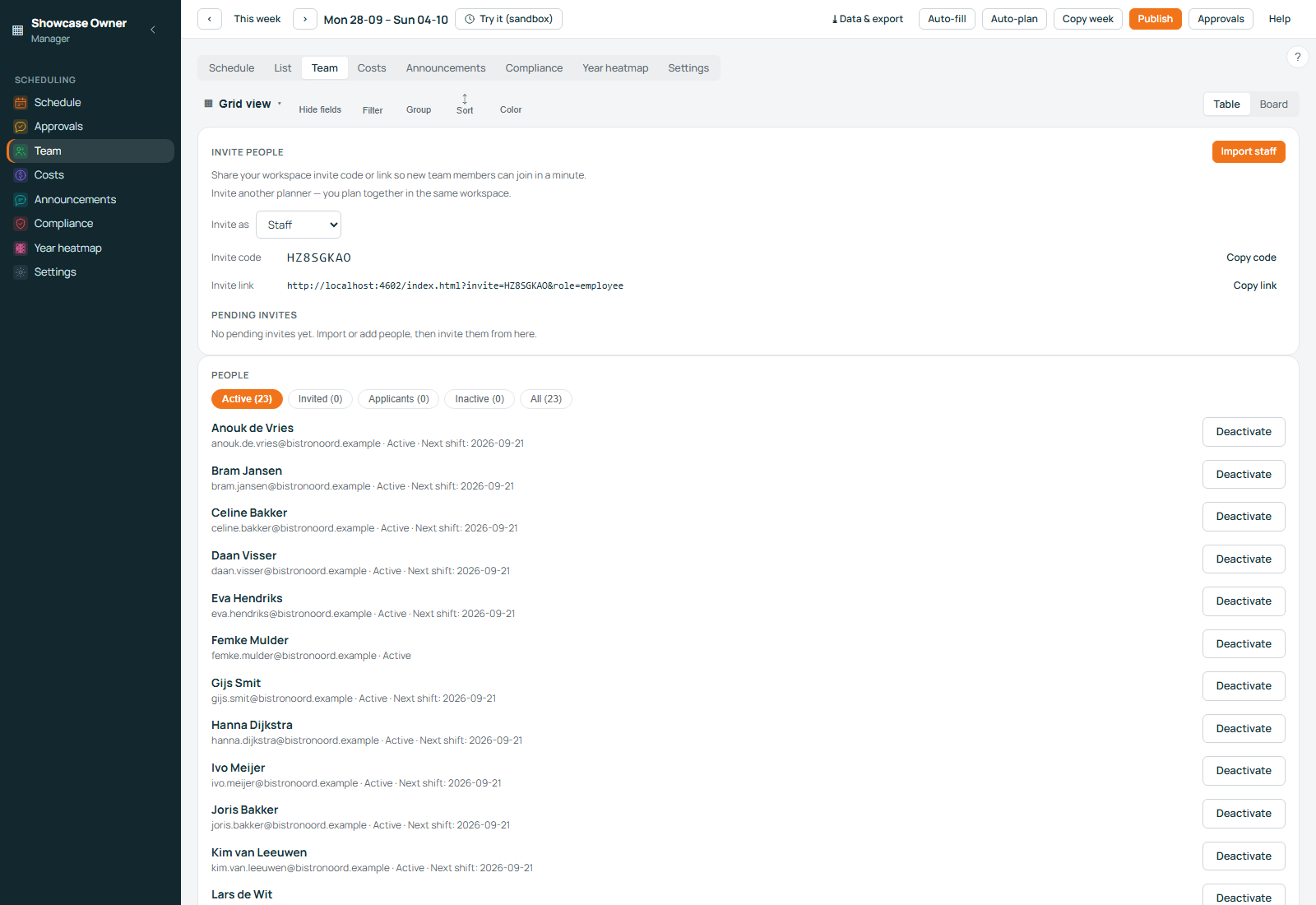
Open the planner, go to Team and press Import staff. Paste a table straight out of Excel, or upload a CSV or TXT file: comma, semicolon and tab separated all work, and the separator is detected for you. Dutch column headings are fine — medewerker, werknemer and personeel are all read as employee, and manager, leidinggevende and chef as planner, including inside a longer label. Name lookups ignore capitals, so Singel works exactly as well as singel. The window shows a preview with a count and a reason per row before a single record is written, and a department your workspace does not yet have is the one blocker it offers to fix for you.
People arrive inactive: importing a full staff list never puts anyone on an invoice, and a person only counts in a month in which they actually work a shift.
-
Plan the weekabout twenty minutes
Press Draft the week to have an assignment proposed for every open shift from your shift templates, then drag whatever needs adjusting. Fill open shifts works the holes left over in the same way. The engine only proposes people whose availability genuinely covers the shift — a shift is offered to someone only if it starts before their available-until time and finishes by it — and every shift it could not fill comes back with a reason rather than silence. Automation drafts; a human accepts. Nothing is final because a machine suggested it.
-
Watch what the week costswhile you plan
The grid carries a running cost per day and per person, built from the hourly wages you enter and the surcharge percentages you set. Sunday, public-holiday and night surcharges are calculated per calendar day, so an overnight shift splits across two rates instead of hiding its Sunday hours after midnight. A location can carry a weekly budget, and the week total shows how close you are to it — before you publish, not after the payroll run.
-
Publishone click
Publishing is the moment the roster becomes official: everyone with a shift that week receives an email and an in-app notification, and the week is marked published. If a shift in the week you are publishing would break an Arbeidstijdenwet rule — too little rest between shifts, a day or a week that is too long, a night-shift limit, a minor inside the night band, a contract cap that has been exceeded — publishing is refused. The message names the person and the rules, nothing is published and nobody is emailed. If you have a real reason to go ahead anyway, a planner can type that reason in and publish over the finding; the reason is written into the workspace log, which is the sentence an inspector asks to see.
-
Invite the teamabout five minutes
The Team tab holds a permanent workspace code and a link you can hand out. That code always creates a staff account and never a planner: to bring in a second planner the owner issues a personal invitation from the same screen, and the invited role is applied when it is accepted. Once people are in, each of them opens the staff app on their own phone and adds it to the home screen — Add to Home screen on Android, Add to Home Screen in Safari on iPhone — so their shifts, open shifts, swaps, leave requests and availability are one tap away, with no app store and no update to chase.
Where everything lives afterwards
One navigation, grouped the way the work is grouped. If you cannot find a screen, it is in one of these three places.
Scheduling
The week grid itself, with the planner toolbar above it: the week switcher, the two automation buttons, Copy another week, Data & export and Publish.
The people screen sits here too — the place you import staff, hand out invitations and see who is active, invited, an applicant or leaving.
Oversight
What the week costs, the compliance panel that lists findings person by person with the rule named, and the heatmap of how the year is distributed across the team.
Each of these is a module. If you do not need a screen, it can be switched off in Settings, which is also where shift types, departments, wages, surcharge percentages, holidays and public holidays live.
Workspace
Messages to the team, and the settings above. Your workspace code, the language your team reads by default and billing all sit in this group.
Nothing in here locks the rota: the whole export is one click away on the Data & export screen, described below.
Data & export: your numbers, out
Data & export opens from the planner toolbar, next to Publish. It holds the downloads with no request, no fee and no waiting period: the shifts of the week you pick, your employees with their departments, contracted hours and hourly wages, and your team's full availability profile — plain CSV, one click each. The payroll file is there as well: the hours of a published week split into regular, Sunday, night and public-holiday columns with the surcharges applied, ready to hand to your payroll clerk.
What the first hour costs
For a small team the answer is nothing at all, and that is not a trial: the free workspace is the whole product, including the working-hours checks.
Free
The whole product, no invoice and no card at sign-up. Set the workspace up, import everyone and plan real weeks.
Standard
No minimum, no per-location fee, no per-planner fee. Prices exclude VAT. A person counts only in a month they worked.
Guided setup
We load your people, departments and shift types with you, or run the interview for you. Doing it yourself is free.
- 4 active employees — €14 per month
- 12 active employees — €42 per month
- 25 active employees — €87.50 per month
- Locations, departments, shift types — not billed
- Planner accounts — not billed
- Up to three active employees — €0
- Who counts. Someone counts in the month when at least one shift that month is assigned to them, and the invoice shows its working. Nobody counts for sitting in the people list.
- The occasional worker. Someone with a single assigned shift in a month is not counted, and two such single-shift people a month are allowed on top of that: a café with six people on the schedule, two of whom worked once, is billed for four.
- No contract. Cancel whenever you like, and take every file with you before you go.
English and Dutch, and the language your team reads
A planner working in Dutch and a staff member working in Polish should both be able to do their part without translating in their heads.
The site and the planner, in two languages
Every page of this website exists twice, in English and in Dutch, with a plain EN | NL switch in the header that is nothing more than two links — no scripting, no redirect, no preference cookie to clear.
The product follows: the planner's own screens read in English or Dutch, and the language is remembered per person, so a Dutch planner and an English-speaking owner can share one workspace.
Four languages in the staff app
The staff app carries English, Dutch, Polish and Romanian. The picker is on the first screen and in the menu, each language is written in its own words with no flags involved, and the choice sticks to the person on that phone.
The setup interview asks which language your team reads and sets it as the workspace default. Anyone can still choose differently for themselves — which is what a kitchen with a mixed brigade ends up doing.
Be clear about what we are
A planning tool, and nothing more than that
Rosterly plans shifts, records hours worked and estimates what a week costs. It is not a payroll system, not an accounting record and not legal advice: payslips, tax and payroll filings stay with your administration, and we hand over the numbers in a CSV.
The cost figures are estimates for a week not yet worked, built from the wages and percentages you enter yourself, and Dutch surcharges differ per CAO. The working-hours checks are a planning aid that names what it looked at — not a professional's opinion, and not a guarantee.
More detail: the Arbeidstijdenwet in plain language, how simple availability becomes real shifts, and the whole price list.
Start with the first step, not a demo
Clicking below opens the sign-up form: your type of business, company name, your own name, email and a password, with the terms to accept. Submitting creates the workspace and starts the setup interview at question one — the same interview described above. No card details are asked for, and no invoice is sent while three or fewer active employees work in a month.
Questions about anything on this page: support@roosterly.pro. We are planning software, not payroll and not legal advice.