Switching
Switching your rota to Rosterly
You already plan the week — in a spreadsheet, a WhatsApp thread, or another tool that costs more and takes longer to set up. What switching really costs is one sitting with your staff list, one week running both side by side, and nothing until a fourth person works a shift.
What follows is what exists in the product today, including the parts that are weaker than we would like. We are planning software, not legal or payroll advice.
What an import actually looks like
No implementation project and no migration team: you paste a file, you see what we would do with it, and nothing is written into your workspace until you press Import.
Four steps, and a locked door in the middle
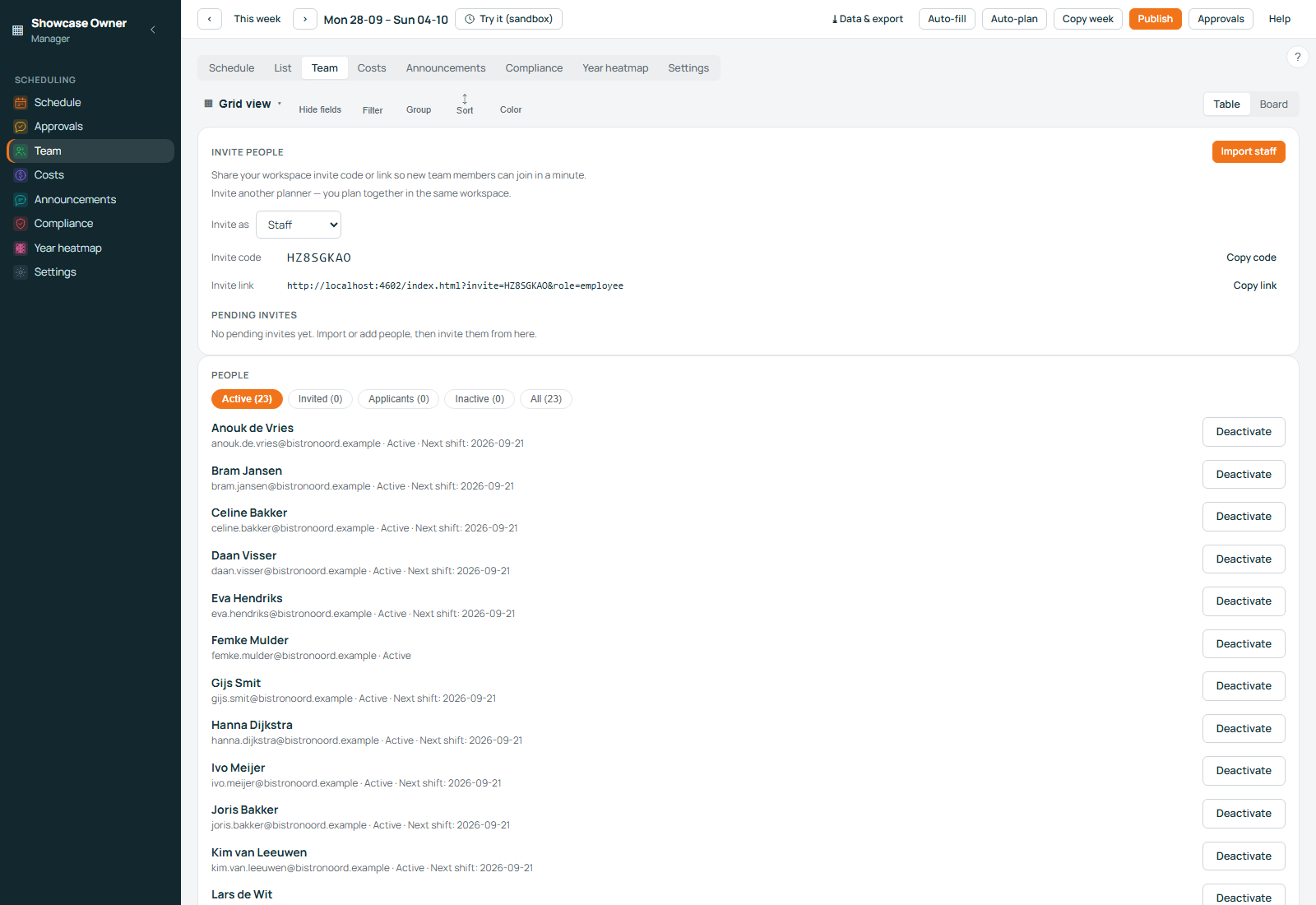
The window has four numbered steps: your data, match your columns to ours, preview, then check and import. Import stays disabled until the server has validated the exact rows you are about to send, so the window reads your file and does not write to it. It takes a CSV, a TXT file or text pasted in: comma, semicolon and tab separated all work, the separator is detected and shown, and a semicolon wins a tie, because a Dutch Excel export is the one we cannot afford to misread.
The five fields, and how the headings are guessed
The staff fields are name, email, role, contract hours and department. Headings are matched against more than sixty spellings, Dutch and English, and any of the five can be overridden with a dropdown. This is a real Dutch export, run through the parser:
Naam;E-mailadres;Functie;Contracturen;Afdeling
Jan de Vries;jan@vries.nl;Medewerker;32;Keuken
Piet Bakker;piet@bakker.nl;Planner;40;BarWhat you see before anything is written
The preview runs the server's own checks and reports a count — 14 of 16 rows ready, 2 will be skipped — with the reason per row: name required, valid email required, email already exists, unknown department. Only valid rows are sent, and the server check revalidates that exact payload row by row before Import unlocks. A department your workspace does not have is the usual blocker: the window offers to create it and re-check.
The three things that genuinely trip people up
- A Dutch decimal comma. 32,5 in the hours column is refused: contract hours must be a whole number from 0 to 60. Round it in the file, or leave the column out and set hours per person afterwards.
- Job titles in the role column. A short list is translated — medewerker or oproepkracht become employees, manager or chef become planners — and a word outside it blocks the row, because the product has two roles. Leave Role unmapped and everyone arrives as an employee.
- Departments have to exist first. An unknown name is refused rather than invented silently, which is the most common reason a first attempt stops.
Setup has a second import tab for the small additions you make yourself, with a downloadable sample file per type, but it wants our column names and shows no preview — a file out of another tool belongs in the window above.
A two-week plan for a business with more than one location
Everything you do yourself is one sitting; availability is the step that costs calendar days, because your people fill it in. Two weeks is a schedule you can hold to, not a stopwatch.
Week one
-
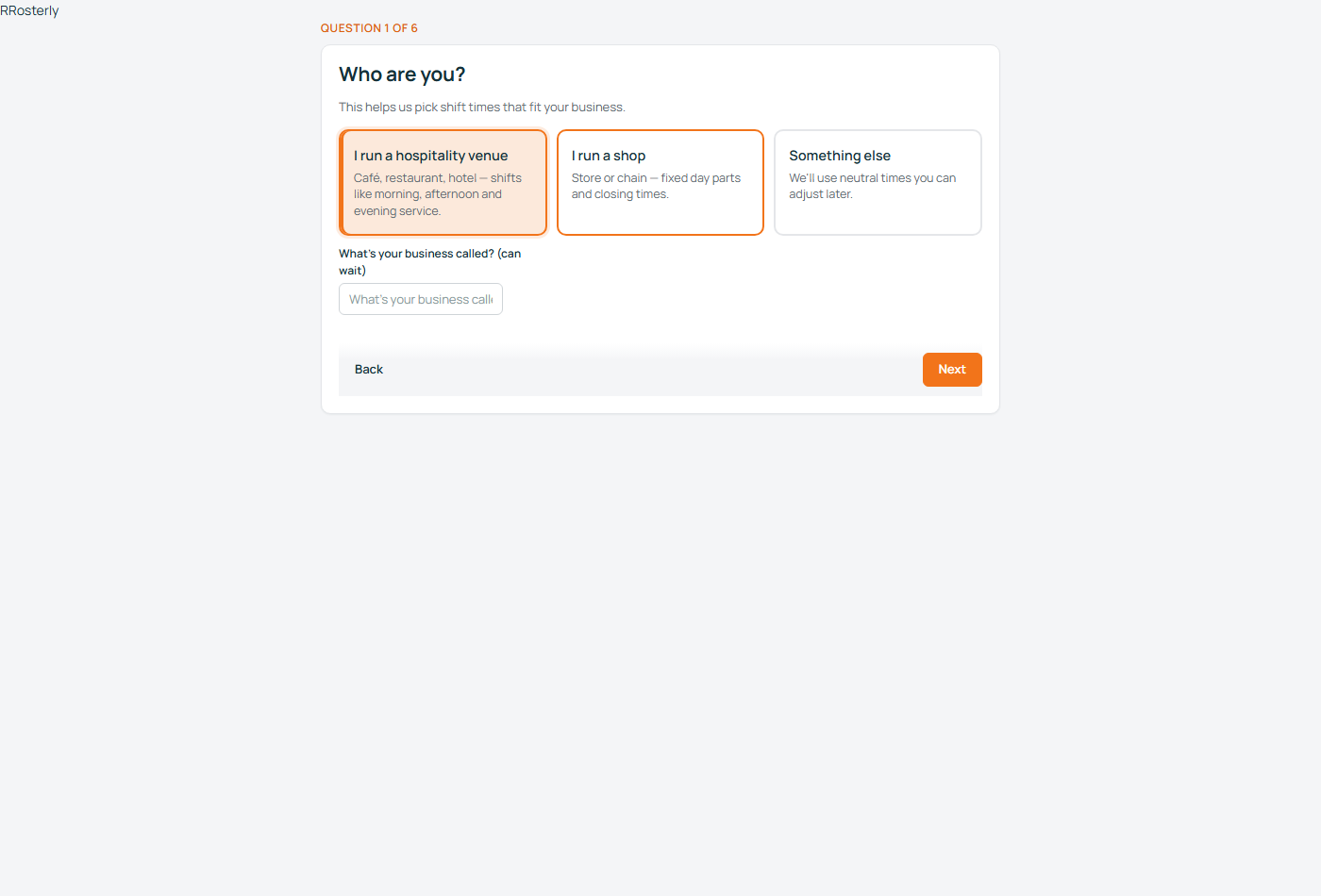
Create the workspace and answer six questions
The wizard asks what kind of business you run, proposes shift times that fit it, and builds your locations, departments, shift types and availability blocks. All of it stays editable.
-
Import your staff list, the same sitting
Export your people from the tool you are leaving and drop the file into the import window: map, preview, check, import. They arrive inactive, so nobody is billed until they work a shift.
-
Do one location at a time
Get location one right before the next: opening, closing, the split shift covering the middle, the shift that ends after midnight. This is where the two tools stop looking alike.
-
Send the invite code and let availability come in
Your staff mark their own availability in the app, day by day, in one of the four languages it carries. This needs days rather than hours, so send the code early.
-
Plan next week here — location one only
Start the coming week in Rosterly and leave the other locations where they are. For one week you run two tools, and you find out what is missing while it still does not matter.
Week two
-
Publish location one
Publish for real, with the notifications that go with it, and keep the old tool running elsewhere.
-
Repeat for the rest
Shift types for that location, then its staff. Your people are one list for the whole business, and a shift carries its own location, so someone working across two places is one person, not two accounts.
-
Cancel the tool you are leaving
Once every location has planned and published a full week here. Keep your last export from the old tool: it is the only copy of that history.
In your own time that is a handful of sittings over a fortnight. In money, the first week is free unless you are already past three active employees.
What the first week costs
For most businesses switching to Rosterly the answer is nothing: the product is free up to three active employees, and importing does not change that. Load the whole staff list, plan and publish while three or fewer people work.
Free
The whole product, no invoice, no card at sign-up, no trial clock to race.
Standard
Counted from the shifts: a person counts in a month when at least one shift that month is assigned to them. Imported people who never work are not counted.
Guided setup
We load your people, departments and shift types with you, or run the interview for you. Do it yourself and it is free.
- 4 active employees — €14 per month
- 12 active employees — €42 per month
- 22 active employees — €77 per month
- 37 active employees — €129.50 per month
- Locations — not billed
- Departments, shift types, planner accounts — not billed
No minimum, no annual contract, no per-location surcharge: three locations and two planners cost the same as a single site. Prices exclude VAT, and importing is part of the product, not a paid migration.
What these numbers are, and are not
The price is a price. The figures inside the product — what a week costs, what a Sunday surcharge adds — are planning figures built on the wages you enter and the percentages you set, not a payroll calculation. Dutch surcharges differ per CAO, and payslips are not something this product produces.
For the checks the product does make, see the working-hours act in plain language, and for the full boundary, what Rosterly deliberately does not do.
What you keep if you leave
The planner's Data & export button, next to Publish, opens a page with three downloads and no questions asked: the shifts of the week you pick, your employees with names, emails, departments, contracted hours and hourly wages, and your team's full availability profile. Plain CSV, one click each, and payroll hours leave as their own CSV. Every person can download their own schedule as a calendar file.
Files, not an archive
One export per area, not a single archive and not a restore-ready backup: several CSV files rather than one download. The raw data is there and yours without a request, a fee or a waiting period — we would rather you knew the shape of it now.
Deletion, and the whole record
Delete the workspace and it is erased, not deactivated: people, shifts, availability and settings go in one transaction, so if it cannot complete, nothing is removed. For a handover an owner can ask for the complete record — settings, people, surcharge percentages, holidays, accepted terms, change log — as JSON. That export exists; it is not a button in the app yet.
What we cannot move for you
A switching page that claims everything comes across was written by someone who has never done an import.
- Your till history. Rosterly does not connect to a POS or cash register, so sales per hour, till totals and revenue against labour do not come across.
- Your payslips. This is not a payroll system: hours leave as a CSV and land in your payroll administration, and payslips stay where they are.
- Your past roster weeks. The import moves the shape of your week — locations, departments, shift types, people, availability — not last year's assigned shifts.
- The other tool's settings. There is no connector and no live sync: you bring a file, we read it.
- Anything outside those five fields. Contract PDFs, notes attached to a person, scanned documents — a document has no home in the import.
- Departments you have not created. An unknown name is refused rather than invented, so there is one extra click before your file goes through.
What does come across is the part you plan with: who your people are, what they are contracted for, where they work, the shift shapes your week is built from, and the availability they filled in themselves. How your data is handled and who can see it covers the rest.
Start with a file you already have
Create the workspace, answer the six questions, and paste your staff list into the import. Free up to three active employees, no card asked for, and nothing to cancel if it turns out not to be for you. If you would rather hand the whole thing over, the optional setup service does the import with you for €195, once.
Clicking it opens the sign-up form: your type of business, company name, your name, email and a password, with the terms to accept. Submitting creates the workspace and drops you into the setup interview, question one of six. No card details are asked for, and no invoice is sent while you have three or fewer active employees.