Availability
Availability your staff will actually fill in
Your team taps all day, part of the day, or nothing at all. Rosterly turns those three answers into the shift types you really run, and says in plain words why a shift can or cannot go to a person.
Free up to three active employees, then €3.50 per active employee per month. Rosterly is planning software, not legal or payroll advice.
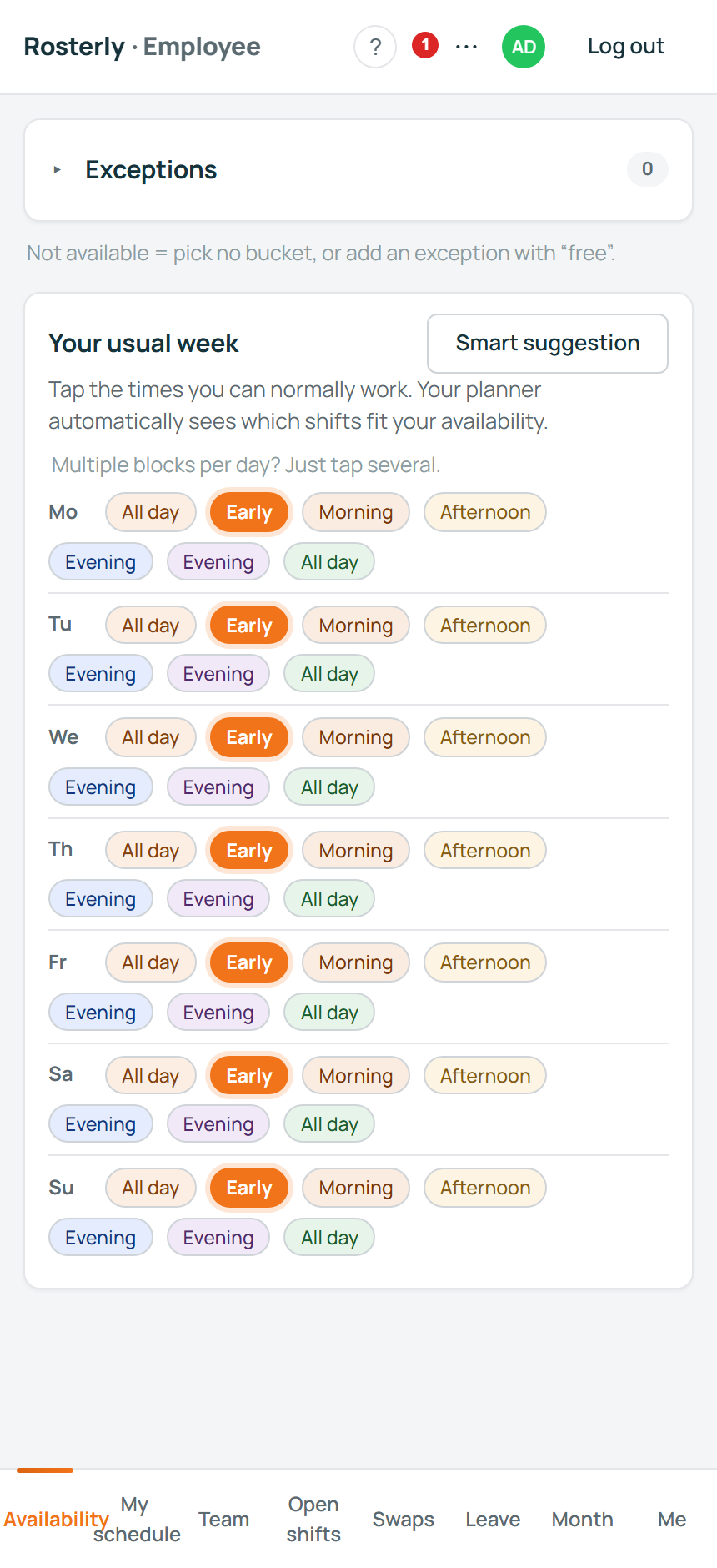
Three answers, and nothing to learn
Availability forms go unfilled because they ask for more than a person knows. Nobody hands a form with eighteen shift types to someone on their first Saturday. So the app asks the three things anyone can answer, from four starting blocks — Morning, Afternoon, Evening and All day — which you rename to whatever your team already says.
All day
The whole day in one tap, for the person who will take whatever the day brings.
Part of the day
Morning, afternoon or evening, in your own names. A day can hold several blocks: the engine reads them as any-of, so "morning or evening" is a real answer.
Not at all
Leave the day empty. The app spells that out instead of leaving a blank to be misread.
Each tap saves on the spot — no submit button, no failed save to remember. Under the picker the app prints what each block actually covers, in hours taken from your own shift types, and says "no times set" when a block covers nothing yet. Employees only ever see the blocks.
The three answers meet the shift types you really run
Three blocks are only useful if they reach your real shift types. In Setup each block is mapped onto them, and those mappings decide who may be scheduled, who may grab an open shift and who may take over a swap.
A block called All day maps to every active shift type. For the rest, the engine reads the start times of your own shift types and splits them into bands, one per block: the first block gets your early starts, the last your late starts. Setup shows that as ticked boxes you can untick. A venue running four shapes might end up like this:
-
All day covers every active shift type
Morning 08:00-14:00, Mid 11:00-19:00, Evening 17:00-01:00, Closing 21:00-01:00.
-
Morning covers the earliest band
Morning 08:00-14:00 and Mid 11:00-19:00.
-
Afternoon covers the middle band
Mid 11:00-19:00 and Evening 17:00-01:00.
-
Evening covers the latest band
Evening 17:00-01:00 and Closing 21:00-01:00.
A block that covers no shift type covers no shifts, and the app says so.
The dentist appointment and the holiday week
A weekly rhythm cannot hold a Thursday 15:00 dentist appointment, and nobody re-answers a week for one afternoon. So the same screen carries a smaller thing: exceptions, one date at a time.
Exceptions sits above the usual week, with the instruction:
An entry takes four taps: a date, an optional note (the placeholder reads "Note (e.g. “free”)"), an optional until-time under "Available until? (optional)", and the block that applies — the same vocabulary as the week.
An exception replaces that day's answer; it does not add to it: Thursday normally all day, plus an Evening exception, is an evening day, full stop. Past entries drop off by themselves, and a wrong one comes off with the x on its row.
The until-time is a cutoff on the shift's end, read the way the label reads: every shift type that would run past that time is taken out of play for that date, and the shapes that finish by then stay. "Available until 16:00" removes the evening and closing shapes and keeps the morning and midday ones — and it also means the 14:00-23:00 closing shift is not offered to you, which is the point of saying it.
The cutoff reads as a window that ends at that time: a shift has to start before it and finish by it. So a 22:00-06:00 night shift is out of the window for anyone using a cutoff, at any hour — a clock time cannot express "I am here until six in the morning". Nights are said with the Night block, and the cutoff is left empty.
A week away is usually one leave request instead — from-date, until-date, reason — which your planner approves. Both end in the same place: the engine's picture of who is available that day.
What a person sees when the answer is no
An availability feature is judged on the day it refuses someone. A greyed-out button with no explanation produces one response: a message to the planner. So every refusal carries its reason as a sentence.
In the employee app
Refused shifts stay on the list, under the line "Shifts you cannot take are listed below, with the reason." A filter called "Only shifts I can grab" is there for anyone who would rather not read reasons at all.
On the planner's screen
The same reasons, worded for the person doing the assigning:
Those gates run wherever a person is attached to a shift — the grid, a grab, a swap, auto-plan — over bucket coverage, department, location, a fixed-location rule, maximum days per week or weekend days, overlap, the weekly hour limit, the working-hours act checks (12 hours in a day, 8 hours between shifts, 60 hours a week) and the 23:00-07:00 night band for anyone under 18. A hard rule cannot be clicked past, by anyone.
Someone who thinks a refusal is wrong can request an exception from the shift itself. It overrides nothing: it sends the planner a notification naming the shift and the reason in words, built from the same sentences — "it is outside your availability", "you already have an overlapping shift", "you would exceed your weekly hour limit". The planner decides, knowing why the engine said no.
One boundary, stated plainly: Rosterly is planning software, not legal or payroll advice, and the week it produces is a plan, not a payroll record.
Put your own shift types in and watch the mapping
Create a workspace and the setup wizard asks six questions, then builds your locations, departments, shift types and the four blocks from your answers. Invite one person, check the mapping, then invite the rest. Free up to three active employees; after that €3.50 per active employee per month.
Clicking "Create your workspace" opens the signup form and gives you an empty workspace with the four blocks in it.
Questions before you start: support@roosterly.pro. Related: staff scheduling without the phone calls and the working-hours act, checked on your own roster.